Oh My Zsh manages Zsh configuration and comes with themes, plugins and some handy defaults. I originally picked Zsh and Oh My Zsh because I wanted a better-looking terminal. I tried a lot of the bundled themes. Most were too busy for my taste, and the simpler ones weren’t quite what I wanted either. Eventually I wrote my own.
Here’s the theme I use, how the prompt works and which plugins I’ve kept.
# My current prompt

The theme itself is six lines:
PROMPT="%{$fg[cyan]%}%c%{$reset_color%}" | |
PROMPT+=' $(git_prompt_info)%(?:%{$fg_bold[green]%}%1{%} :%{$fg_bold[red]%}%1{%} )' | |
ZSH_THEME_GIT_PROMPT_PREFIX="%{$fg_bold[blue]%}git:(%{$fg[red]%}" | |
ZSH_THEME_GIT_PROMPT_SUFFIX="%{$reset_color%} " | |
ZSH_THEME_GIT_PROMPT_DIRTY="%{$fg[blue]%})" | |
ZSH_THEME_GIT_PROMPT_CLEAN="%{$fg[blue]%})" |
The first line shows the final directory component. The second adds the Git information and status symbol. The last four set the Git prefix, suffix, and indicators for clean and modified working trees. I deliberately gave DIRTY and CLEAN the same value. The base theme shows the branch without distinguishing local changes.
# Installing a custom theme
Oh My Zsh’s customisation conventions support themes under $ZSH_CUSTOM/themes . With the default installation, that’s ~/.oh-my-zsh/custom/themes . Keeping a separate .zsh-theme file makes it easy to find and edit later.
Create the directory, respecting a custom value of ZSH_CUSTOM if you have one:
mkdir -p "${ZSH_CUSTOM:-$HOME/.oh-my-zsh/custom}/themes" |
Save the six lines as sycamore-simple.zsh-theme , then edit the existing ZSH_THEME setting in ~/.zshrc . Omit the filename extension:
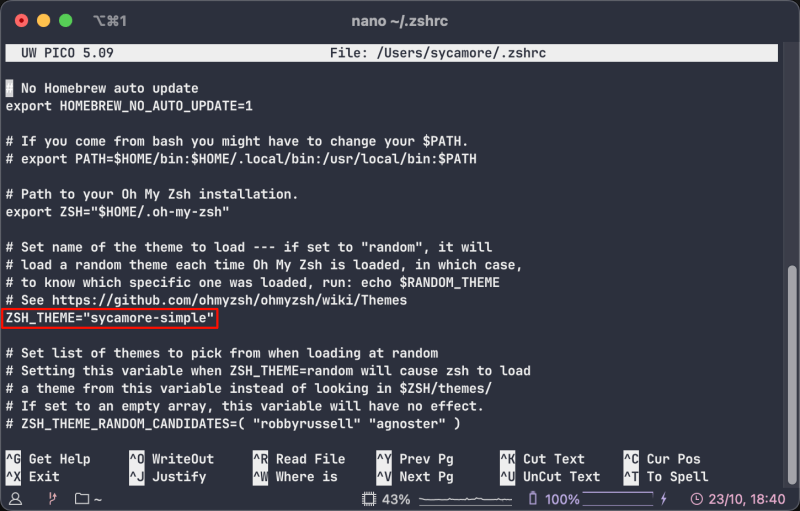
Put it before source $ZSH/oh-my-zsh.sh so it’s in place at initialisation. Open a new terminal to check the result.
# Understanding the configuration
If you’d rather start with a few examples, skip to common variations and come back when you want to change a particular detail.
# What controls the prompt?
Oh My Zsh uses ZSH_THEME to find the file and supplies helpers such as git_prompt_info . Zsh variables and prompt expansion determine what gets drawn.
| Variable | When it appears |
|---|---|
PROMPT / PS1 |
Main prompt waiting for input. Both names refer to the same parameter. |
RPROMPT / RPS1 |
Right-hand prompt while editing a command. |
PS2 / PROMPT2 |
Continuation prompt for unfinished input, such as a quote or loop. |
RPS2 |
Right-hand continuation prompt. |
PS3 |
Selection prompt in a select loop. |
PS4 |
Prefix on execution trace lines. |
Most themes concentrate on the first two. Here are examples for continuation, selection and debugging:
PS2='%_> ' | |
PS3='请选择编号:' | |
PS4='+%N:%i> ' |
In PS2, %_ names the unfinished shell construct; if you see this prompt after Return, the command needs more input. PS3 affects select menus. In PS4, %N and %i show the script or function name and line number. Use set -x to start tracing and set +x when finished.
# Prompt expansion reference
Zsh expands percent sequences when displaying the prompt. This is a selection from the prompt expansion manual.
| Purpose | Sequences | Display |
|---|---|---|
| Directory | %c |
Last component, with home abbreviation |
| Directory | %~ |
Full path with home or named-directory substitutions |
| Directory | %/ , %d |
Full path without home abbreviation |
| Identity | %n , %m , %M |
Username, short hostname, full hostname |
| Terminal | %l , %y |
Terminal name with different prefix handling |
| Status | %? , %j , %L |
Exit status, job count, shell nesting level |
| Privilege | %# |
Hash for a privileged shell, percent otherwise |
| History | %h , %! |
History event number |
| Time | %T , %* |
24-hour time without or with seconds |
| Date | %D{%Y-%m-%d} |
Formatted date |
| Colour | %F{cyan} / %f , %K{black} / %k |
Set/reset foreground and background |
| Style | %B / %b , %U / %u , %S / %s |
Start/end bold, underline or standout |
| Literals | %% , %) |
Percent sign or closing parenthesis |
A number before a directory escape limits the component count: %2~ keeps the last two, useful if you want the project name without filling the line. The PS2 and PS4 examples above show how to use %_ , %N and %i . Related debugging escapes include %^ for unfinished constructs in reverse order, %x and %I for the defining file and line, and %e for evaluation depth.
For a two-line prompt put a literal newline in the string or concatenate $'\n' . In ordinary single quotes, backslash-n remains two characters.
| Format | Meaning |
|---|---|
%t , %@ |
12-hour time with am/pm |
%D , %w , %W |
Two-digit year-month-day, abbreviated weekday and day, or month/day/two-digit year |
%D{format} |
A strftime-style format, e.g. %Y , %m , %d , %H:%M:%S |
The codes inside date braces have their own meanings. Zsh adds unpadded day ( %f ), 24-hour ( %K ) and 12-hour ( %L ) fields. Fractional seconds use %. ; %6. requests six digits, %9. or %N nine. Actual precision depends on the clock. Forms such as %-d suppress padding. Other extensions depend on the system.
%Eclears from the cursor to the end of the line.%{...%}encloses nonprinting sequences such as colour codes so they don’t count towards prompt width. Keep ordinary text outside this wrapper.- Inside such a sequence,
%Gaccounts for one visible character cell and%2Gfor two.
The older %c and %. show the final directory component, and %C does the same without abbreviating home as ~ . The manual deprecates the older directory forms %c and %. in favour of %1~ , and %C in favour of %1/ . I kept %c above to show my actual theme.
A function can compute values first and leave formatting to the prompt using the psvar array. %v selects the first item, %2v the second; negative indices count from the end. With psvar=(demo) , %v displays demo.
# Conditional output
The second line of my theme uses %(?:success:failure) to change the final symbol between green and red according to the previous exit status. Add %? to display the numeric status itself.
The question mark selects the test. The two colons separate test, true branch and false branch. Both can instead be dots, as in %(?.success.failure) . In the general form %(test.true.false) , the comparison value can appear before or after the opening parenthesis; it defaults to zero.
| Test | True when |
|---|---|
! |
The shell has privileges. |
# , g |
Effective user or group ID equals n. |
? |
Previous exit status equals n. |
_ |
At least n shell constructs are open. |
/ , C |
The absolute path has at least n components; root counts as zero. |
c , . , ~ |
The substituted path has at least n components. |
D , d , w |
Month, day of month or weekday equals n. Months are zero-based; Sunday is zero. |
T , t |
Hour or minute equals n. |
e , j , L |
Evaluation depth, jobs or shell level is at least n. |
S |
SECONDS is at least n; this is not the previous command’s duration. |
v , V |
psvar has at least n entries, or its nth entry is set and nonempty. |
l |
At least n characters have been printed on the line; a negative argument tests space left to the opposite edge. |
For example, %(!.#.>) displays a hash for a privileged shell and a greater-than sign otherwise. Choose another delimiter if your branch text contains a dot. Use %) for a literal closing parenthesis in a branch. Conditionals can nest. Negative condition arguments use their absolute value except for the remaining-width form of l .
# Dynamic information
The Git branch changes while the shell stays open. I put $(git_prompt_info) inside the prompt so command substitution runs the helper each time the prompt is displayed. This requires:
setopt PROMPT_SUBST |
Oh My Zsh already enables this option. For a standalone test you’ll need to enable it; the colour variables and Git helper still come from Oh My Zsh. Quoting controls when substitution happens:
# 设置时保留函数调用,每次显示提示符时再执行 | |
PROMPT='$(git_prompt_info) ' | |
# 设置时立即执行函数,保存这一次返回的结果 | |
PROMPT="$(git_prompt_info) " |
Single quotes keep the call for the next prompt expansion. Double quotes evaluate it when assigning the variable. I used single quotes for the Git helper and the battery and Python examples below.
# Common variations
Each example starts with my six-line theme and changes one thing so you can compare the results.
# Show the full path
Replace the first line of the theme with the following to show the full path:
PROMPT="%{$fg[cyan]%}%/%{$reset_color%}" |

To show your home directory as ~ , replace %/ with %~ . Both keep the full directory hierarchy.
# Show the username
To show the username and hostname before the path, append this line to the theme:
PROMPT='%n@%m '"$PROMPT" |

If you only want the username, replace %n@%m with %n .
# Put the time on the right
Append the time to the left prompt after loading the theme:
PROMPT+=' %F{yellow}%*%f ' |
Or keep the space between directory and input free by setting the right prompt:
RPROMPT='%F{244}%D{%H:%M:%S}%f' |

Choose one. The battery and Python examples also assign RPROMPT; assigning it again replaces the previous value. The time is evaluated when the prompt is displayed. It isn’t a continuously ticking clock, and the right prompt gives up space as the command line grows.
# Show the battery level
Here’s the macOS example. Put the function and right prompt after the theme:
sycamore_battery() { | |
local value | |
value=$(pmset -g batt 2>/dev/null | sed -nE 's/.*[[:space:]]([0-9]+)%;.*/\1/p' | head -n 1) | |
[[ -n $value ]] && print -rn -- "bat ${value}%%" | |
return 0 | |
} | |
RPROMPT='$(sycamore_battery)' |

Without battery information it displays nothing. The %% in the function’s output becomes one percent sign during prompt expansion. The query runs on prompt refresh, without a background polling task.
# Show the Python project, environment and version
If you switch between Python projects and environments often, you can show the project marker, environment name and interpreter version in the prompt. Place this function and right prompt after the six theme lines:
sycamore_python() { | |
local env_name version text='' | |
[[ -f pyproject.toml || -f requirements.txt ]] && text='Python project' | |
if [[ -n $VIRTUAL_ENV ]]; then | |
env_name=${VIRTUAL_ENV:t} | |
elif [[ -n $CONDA_DEFAULT_ENV ]]; then | |
env_name=$CONDA_DEFAULT_ENV | |
fi | |
[[ -n $env_name ]] && text+=" env:${env_name}" | |
if [[ -n $text ]] && (( $+commands[python3] )); then | |
version=$(python3 --version 2>/dev/null) | |
text+=" ${version}" | |
fi | |
print -rn -- "${text//\%/%%}" | |
return 0 | |
} | |
RPROMPT='$(sycamore_python)' |

It checks the current directory for pyproject.toml or requirements.txt , reads the environment from VIRTUAL_ENV or CONDA_DEFAULT_ENV , and reports the version of python3 on PATH. It doesn’t search parent directories or read version-manager configuration. If prompt refreshes are frequent, cache the version after changing environments instead of launching an interpreter every time.
# Mark a dirty Git working tree
I gave clean and dirty trees the same suffix in the original. Change DIRTY to add an asterisk when the tree has changes:
ZSH_THEME_GIT_PROMPT_DIRTY="%{$fg[blue]%}) *" |

Oh My Zsh handles status detection; its settings affect whether untracked files count. Run git status to see the actual changes.
# Plugins
These are the six plugins enabled in my setup:
plugins=(git zsh-autosuggestions zsh-syntax-highlighting z extract web-search) |
Put this in .zshrc before Oh My Zsh initialises. The theme defines the prompt; plugins add commands and input behaviour. Install a plugin before adding its name.
# git
Adds shortcuts such as gst for git status and gco for git checkout . The theme’s git_prompt_info helper comes with Oh My Zsh independently of this plugin.
# zsh-autosuggestions
Shows suggestions after the cursor, using command history by default. After running python test.py , typing the beginning can suggest the rest.

The upper line has suggestions turned off. In the lower line, grey text is the suggested part awaiting acceptance.
# zsh-syntax-highlighting
Colours the input so commands, arguments, quoted strings and some invalid input are easier to distinguish. The input highlighting is separate from the directory colour in the prompt.

# z
Jumps to previously visited directories. Once you’ve visited a project folder, z followed by part of its name can find it.
# extract
extract filename chooses the decompression tool for the archive type. I like having one command for the lot.
# web-search
Commands such as google zsh prompt open a query in the browser, handy when looking something up from the command line.
# Fonts and rendering
My default iTerm profile uses JetBrainsMonoNFM-Regular at 12 points. Select a font with the appropriate glyphs in your own terminal. If the icon appears as a box, switch fonts or simply replace it with > in the theme.
Width matters too. My theme declares %1{%} as one cell. If the terminal draws it two cells wide, the cursor can end up in the wrong place.