I’ve been rebuilding virtual machines quite a bit lately. Shared folders make it much easier to move files between the host and the guest, so I wrote down the setup.
These notes cover a Kali guest in VMware on a Windows host. Apart from the VMware settings, all commands run inside Kali. The screenshots show a root session. If you use a regular account, keep the sudo in the commands below.
# Setup
# 1. Add the folder in VMware
Right-click the virtual machine and open Settings. Under Options → Shared Folders, choose Always enabled and click Add.

For Host path, select the directory on the host. Name defaults to the folder name, but you can change it. I used kali-Attack , which is how the share will appear in Kali.

# 2. Install open-vm-tools
Kali may already have open-vm-tools. If the guest can list and mount the share, skip this step. Otherwise run:
sudo apt-get update | |
sudo apt-get install open-vm-tools-desktop fuse |
apt-get update refreshes the package index. If the package still can’t be found, check the configured repositories and the network connection. Having a package installed already doesn’t itself cause an installation error or mean you need to reinstall it.
The Kali documentation covers installation and troubleshooting, including a helper script available through kali-tweaks . The rest of these notes use the manual mount procedure.
# 3. List the shares
vmware-hgfsclient |
The output should include the name you set in VMware. Mine shows kali-Attack : the guest can see the share, but it still needs to mount it before it can read the files.

# 4. Create a mount point
sudo mkdir -p /mnt/hgfs |
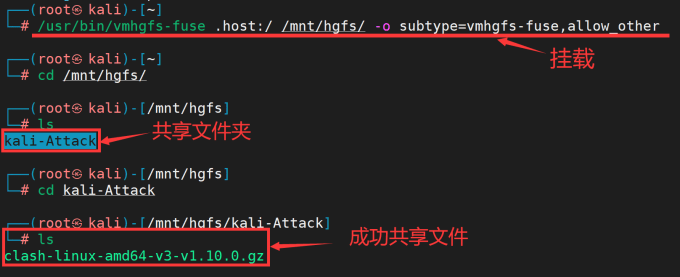
The next step mounts all the shares under /mnt/hgfs . That’s the only directory you need to create. In the screenshot I also created a kali-Attack subdirectory; you can skip that, because the share name appears automatically after mounting.

# 5. Mount the shared folders
sudo /usr/bin/vmhgfs-fuse .host:/ /mnt/hgfs/ -o subtype=vmhgfs-fuse,allow_other |
.host:/ selects all the host’s shared folders. /mnt/hgfs/ is the mount point. allow_other lets users other than the one who mounted the share access it, subject to file permissions and VMware’s sharing settings.
After mounting, list the files in the host folder:
ls /mnt/hgfs/kali-Attack |
# 6. Mount at startup
The manual mount lasts for the current session. Once you’ve confirmed it works, you can add it to /etc/fstab to mount it at startup. Back up the file before editing:
sudo cp -a /etc/fstab /etc/fstab.bak | |
sudo vim /etc/fstab |
Append this line, keeping the existing entries:
.host:/ /mnt/hgfs/ fuse.vmhgfs-fuse allow_other 0 0 |

Save, run sudo systemctl daemon-reload , then run sudo mount -a to check for errors. If there’s an error, fix the new line or comment it out before rebooting. After restarting, check that /mnt/hgfs/kali-Attack is accessible.
# Recap
Add the shared directory in VMware, confirm its name with vmware-hgfsclient , then mount it under /mnt/hgfs with vmhgfs-fuse . Add an /etc/fstab entry if you want it mounted at startup.